



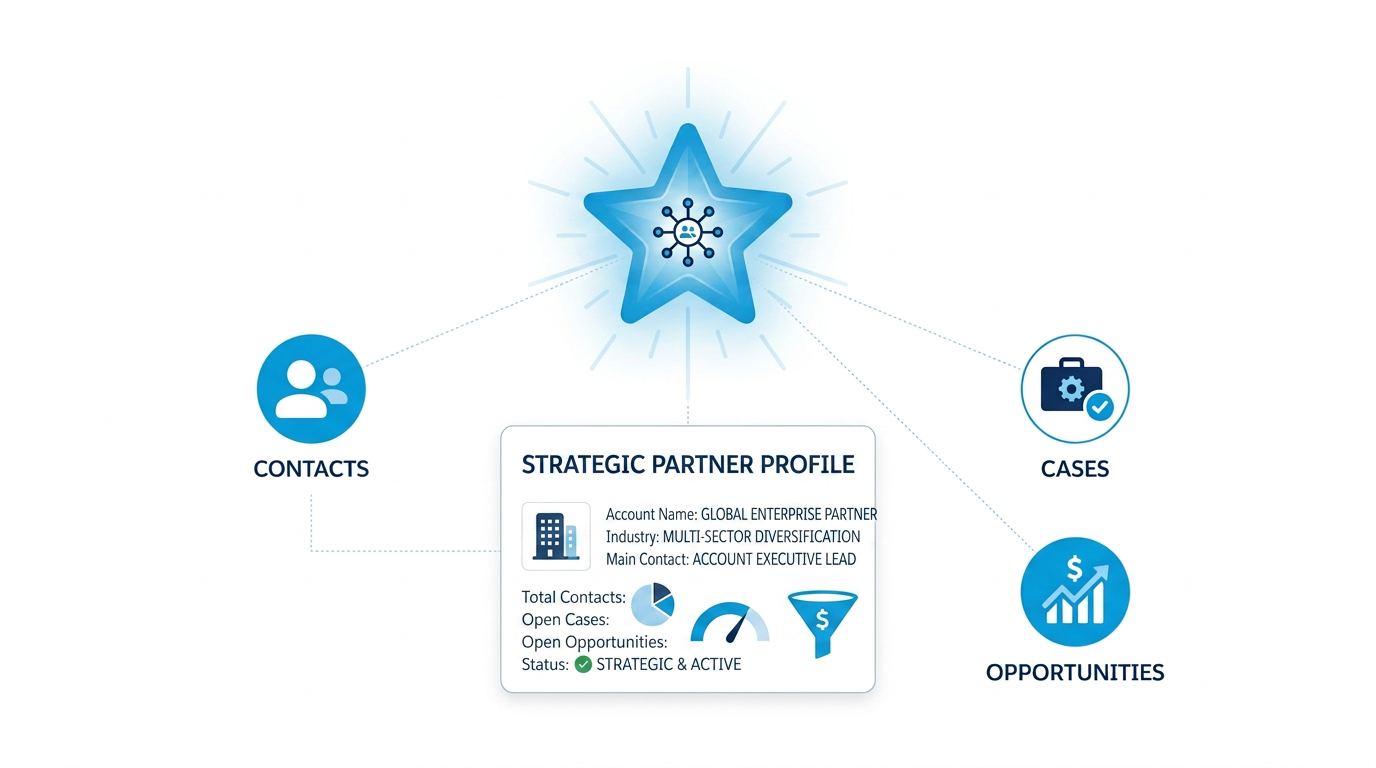
Salesforce is evolving quickly, and Prompt Builder with Einstein and Generative AI is one of the most powerful additions for admins and developers. In this blog, we will build a real-world Prompt Template that automatically generates a summary for an Account record. This helps users understand the full context of an account without opening multiple related lists, such as Opportunities, Contacts, and Cases.
By the end of this blog, you will:
- Create a Summary field on Account
- Build your first Prompt Template using Field Generation
- Use related records inside a prompt
- Add the prompt directly to the Account record page
Use Case: Account Summary Using Prompt Template
Sales users often need a quick overview of an account. Instead of checking each related list manually, they should be able to read one paragraph and understand what is happening with the account.
We will achieve this by:
- Creating a Text Area field called Summary on Account
- Using Prompt Builder to generate a summary that includes:
- Account Name and Type
- Related Cases
- Related Contacts
- Related Opportunities
Step 1: Create a Summary Field on Account
- Go to Setup
- Navigate to Object Manager and open Account
- Click Fields and Relationships
- Click New
- Select Text Area (Long)
- Field Label: Summary
- API Name: Summary__c
- Save the field
.png)
Step 2: Enable Einstein and Agents
Before using Prompt Builder, Einstein and Agents must be enabled.
- Go to Setup
- Search for Einstein Setup
- Complete the Einstein setup if not already enabled
- Ensure Agents are enabled
Step 3: Open Prompt Builder
- Go to Setup
- Search for Prompt Builder
- Open Prompt Builder
- Click New Prompt Template
.png)
Step 4: Create a New Prompt Template
Fill in the details as follows:
- Prompt Template Type: Field Generation
- Prompt Template Name: Account Summary Prompt Template
- Description: This prompt template generates a summarized overview of Account records including related Cases, Contacts, and Opportunities.
- Object: Account
- Object Field: Summary
.png)
Step 5: Write the Prompt
We want the prompt to generate a meaningful summary using Account details and related records.
To insert dynamic values:
- Click Insert Resource
- Select Account object
- Choose fields such as Name and Type
- Use Related Lists for Cases, Contacts, and Opportunities
.png)
.png)
Step 6: Select the LLM Model
From the model selection section, choose a model. In our case, we selected OpenAI GPT-4 OmniMini. This model works well for summarization and provides fast responses.
Step 7: Test the Prompt Using Preview
- Click Preview
- Select an Account record for testing
- Click Preview
You will see two sections:
- Resolution: Salesforce data sent to the LLM
- Response: AI-generated summary
.png)
Step 8: Activate the Prompt Template
After successful testing, activate the prompt template.
Step 9: Add Summary Field to Account Record Page
- Open any Account record
- Click Setup and select Edit Page
- Ensure the Summary field is added to the layout
- Save and activate the page
.png)
Step 10: Generate Summary from the Record Page
- Open an Account record
- Click the edit option on the Summary field
- Click AI Star Something button
- Salesforce generates the summary automatically
- Click the Use button, then click Save
- The generated summary is now visible in the Summary field
Users now see a complete account overview in a single paragraph.
.png)
.png)
Final Thoughts
Prompt Builder allows Salesforce admins and developers to build intelligent, AI-powered experiences without writing Apex code. This Account Summary example is a simple but powerful use case that improves user productivity and data understanding.





.png)
